
8" Mini Laptop
Contents
Upon my Lenovo Legion laptop breaking down in early December 2025, I started looking for lighter thin-client alternatives since I was already committed to my PC workstation build. Then an epiphany came to me.
Inspiration
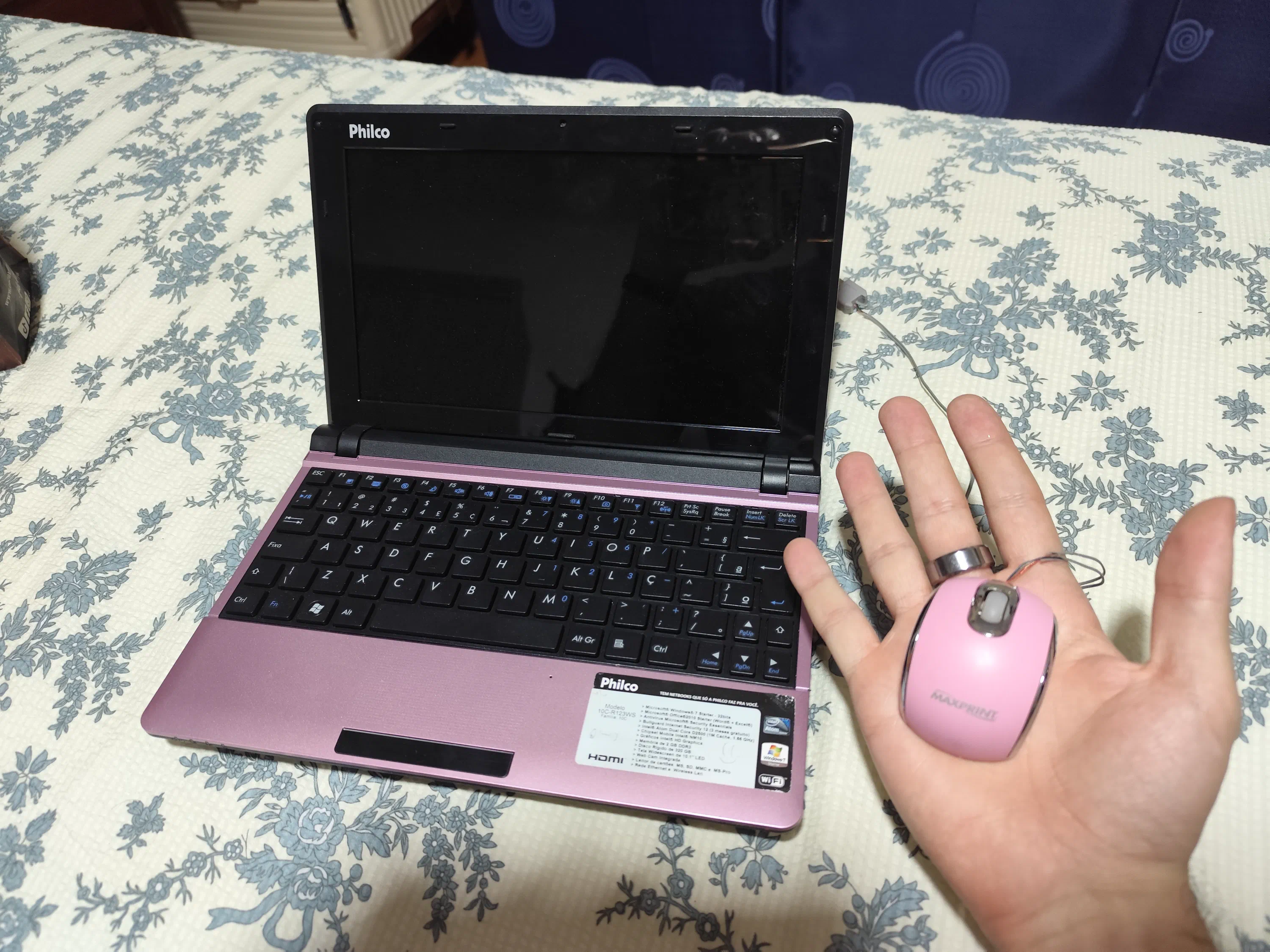
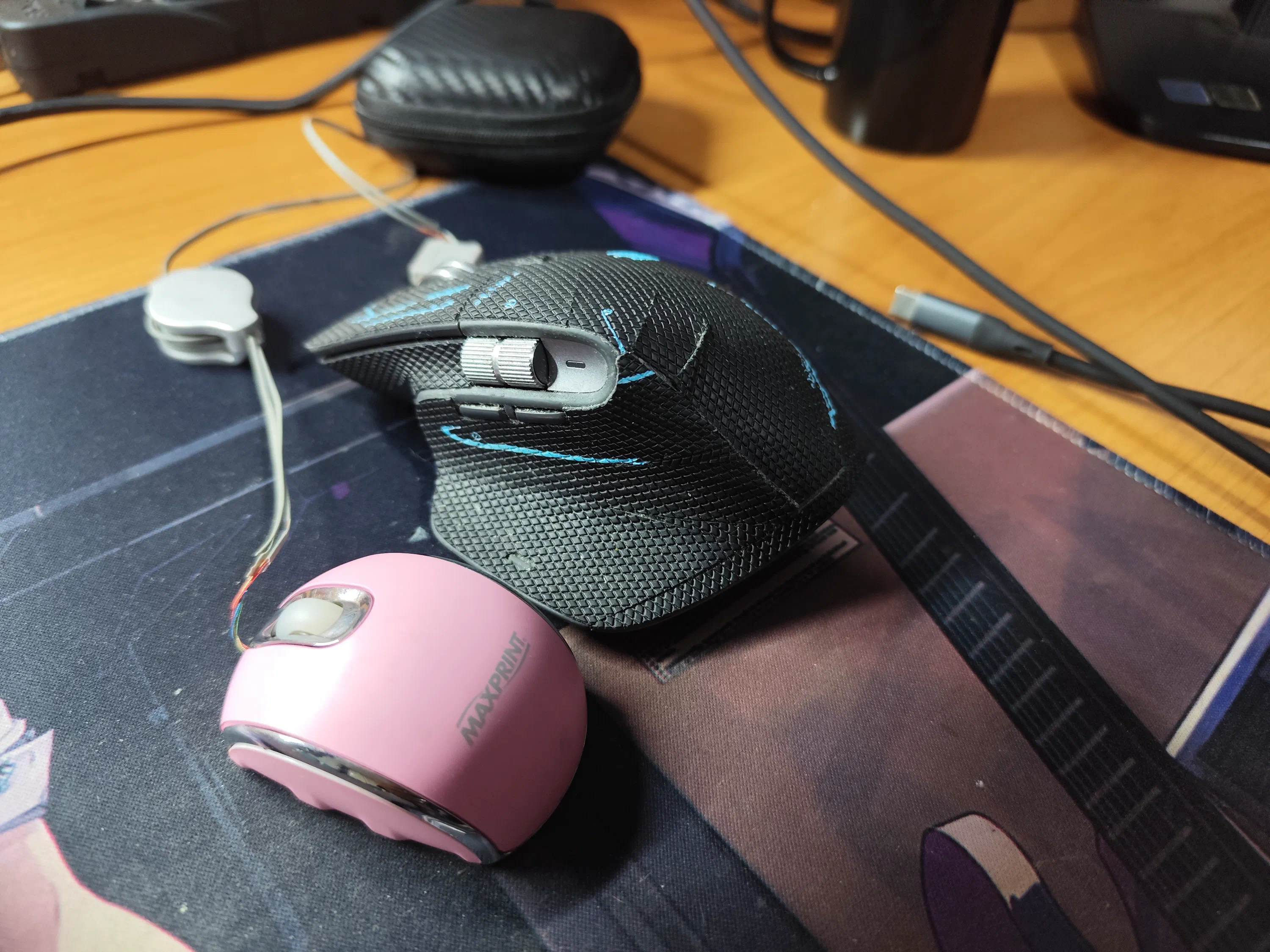
In the scramble that was to find a working laptop in Brazil after the breakdown, I happened across my grandma’s Philco netbook. These were small-sized and inexpensive laptops common in the late 2000s and early 2010s. I couldn’t help but fall in love with the tiny form factor. Her’s even came with a suitably tiny mouse.
Buying a Mini Laptop
I began searching for modern equivalents. This was quite a bit more niche as netbooks are mostly obsolete in the current day and age, with the exception of Chrome books. The first thing I found was the GPD series of mini laptops, however, they were quite a bit past my intended budget.
Looking a bit further, I decided to search on the Chinese second-hand platform XianYu. There I started seeing many listings for these 8" mini laptops; which boasted a modern N100 or N150 Intel CPU, up to 12GB of RAM, and a tiny M.2 2230 drive. The first one that piqued my interest is the one shown below:
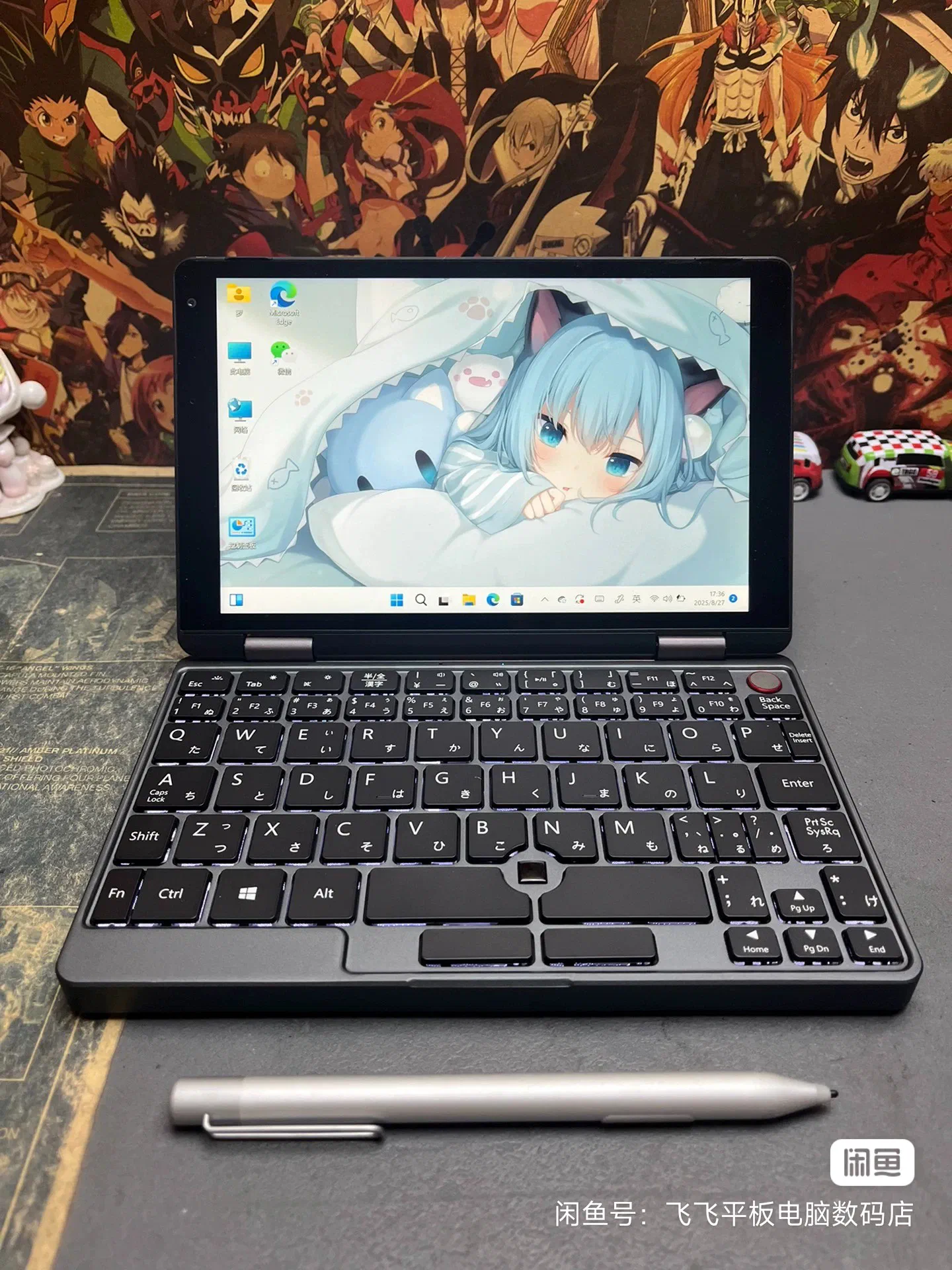
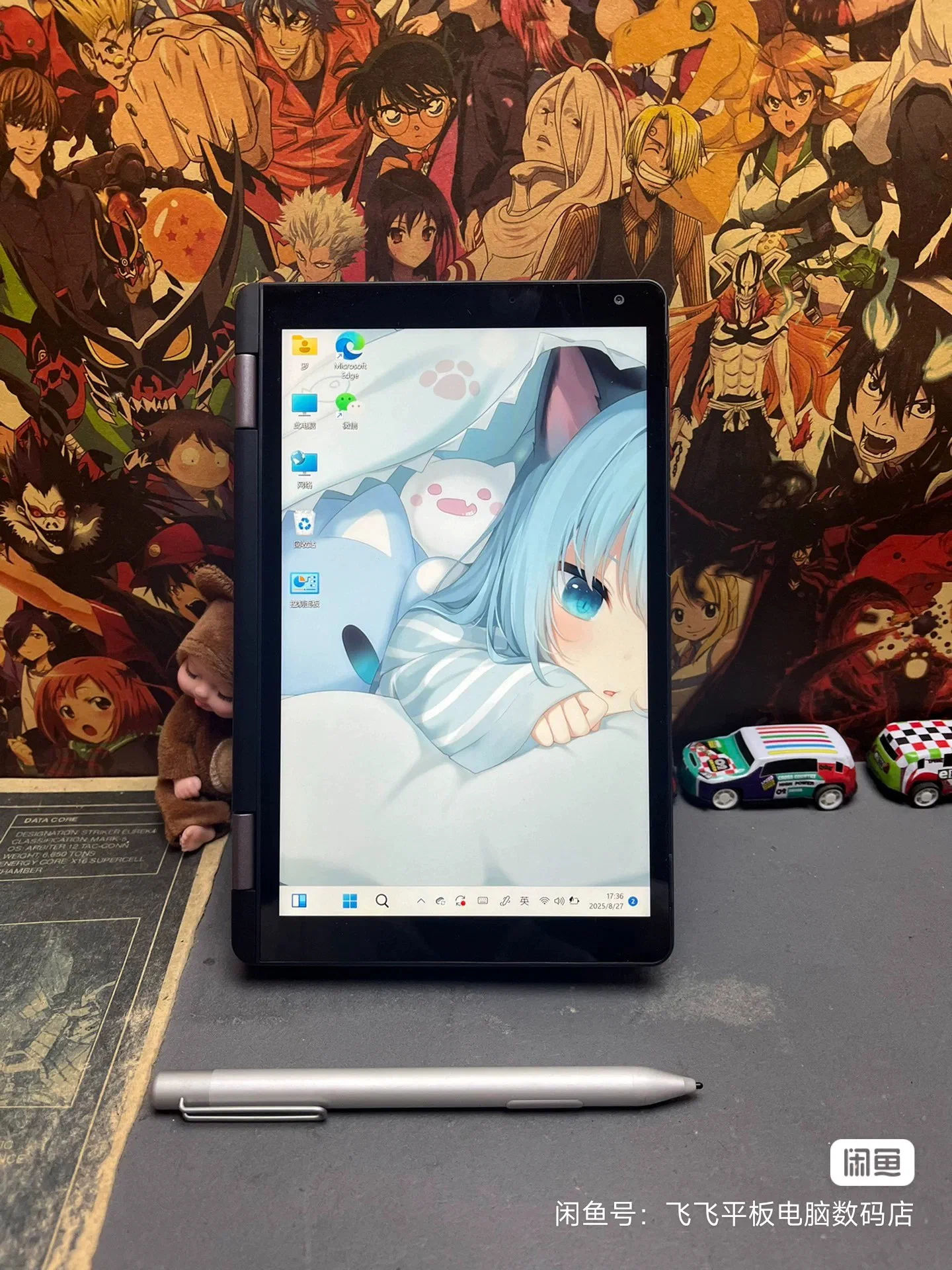
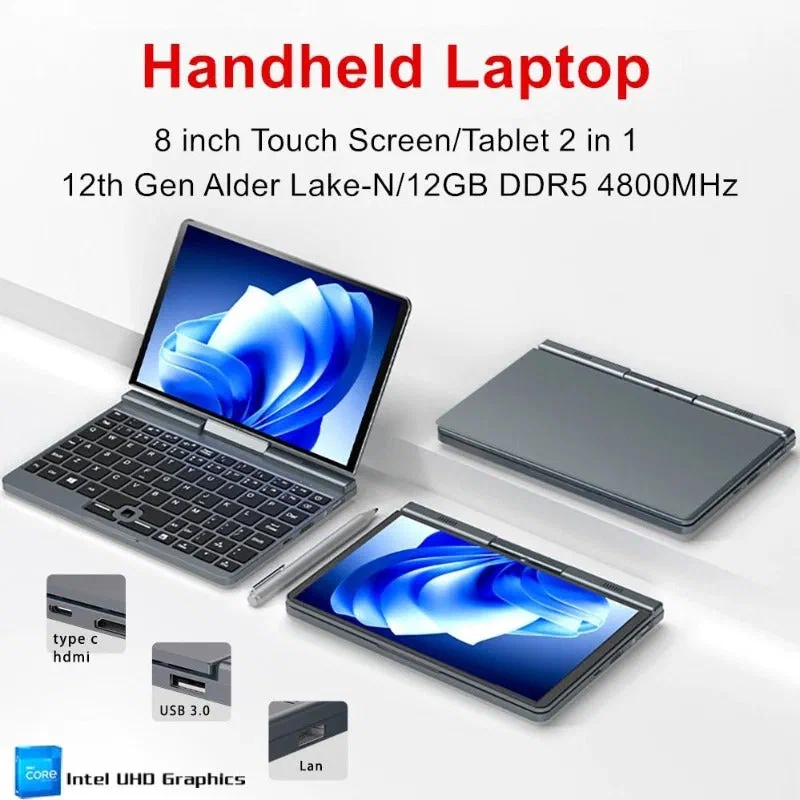
Not only does it have a Japanese keyboard which is a nice bonus, but the screen folds back to enter Tablet mode, where it is also compatible with a stylus. The power button also includes a fingerprint reader.
I was very very close to purchasing this one, until I saw another deal. For a similar model, however just an English keyboard and no fingerprint reader, but with a swivelling screen. The killer difference was; it was upgraded with a 2TB 2230 M.2 drive, and was selling for only CNY1668. This was a killer deal in late 2025, with the memory price boom caused by AI; I could sell this 2TB drive for the same price as the entire mini laptop if not more. I went ahead and purchased this one instead, much to the discontent of my aesthetic preferences.
Teardown
To quote EEVBlog, “Don’t turn it on, tear it apart!”. With those spirits in mind, I tore it down for inspection as soon as I received it:
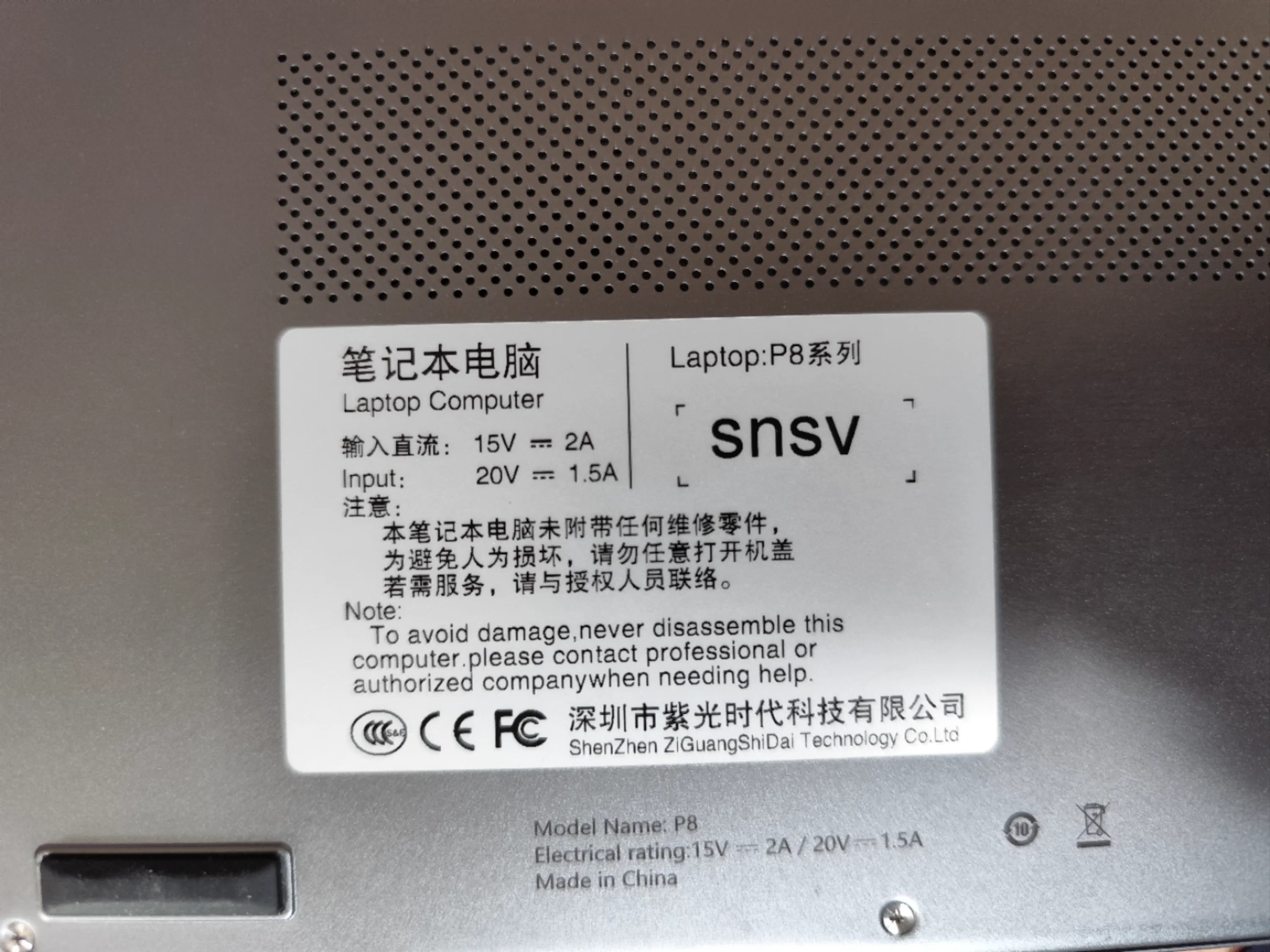
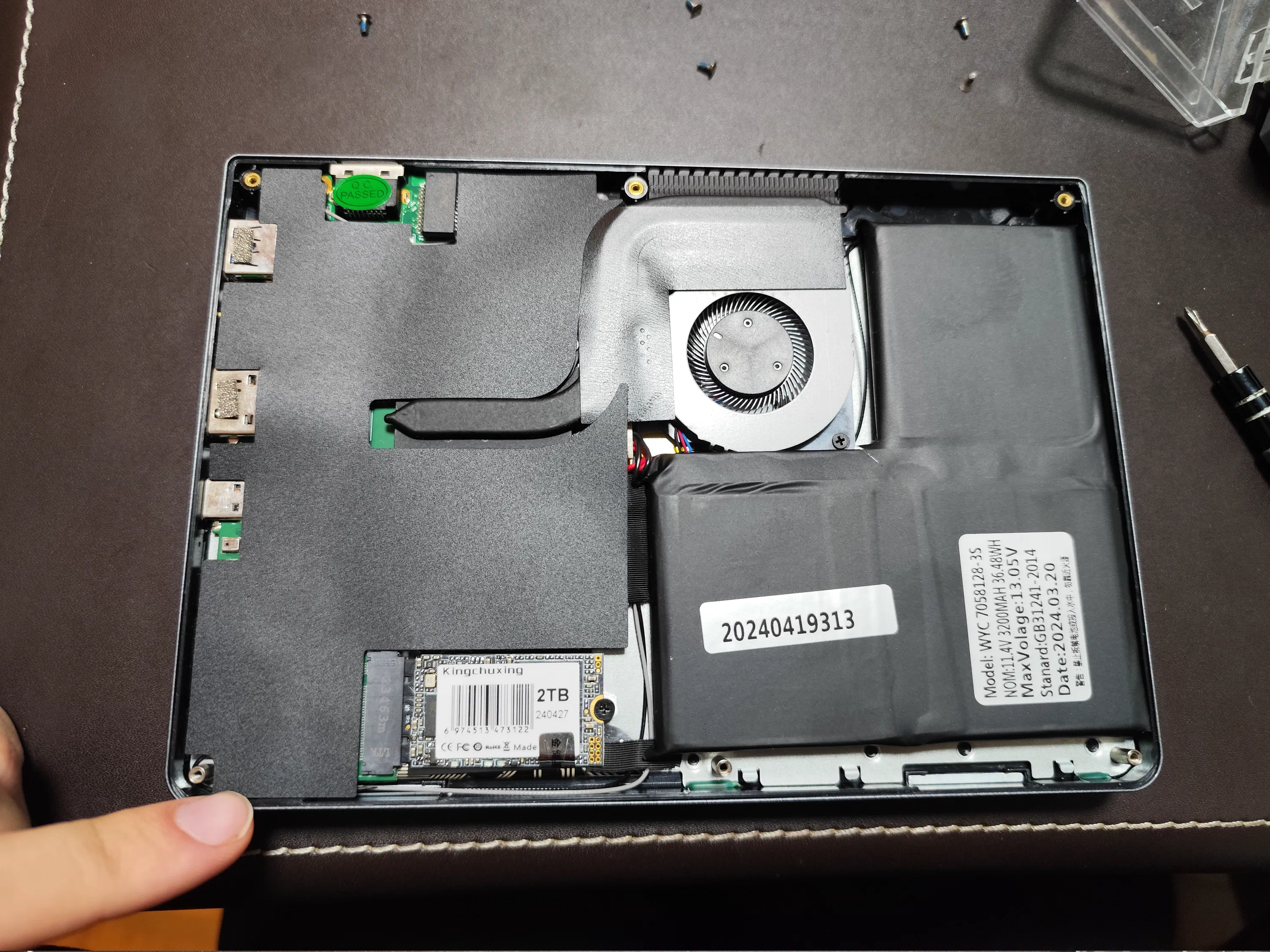
Here we can see neatly tucked behind black tape are most of the components; the battery, the tiny cooling fan, and the exposed 2230 M.2 drive. This unit has 12GB of RAM which seems to be soldered in place; reasonable for this size and already the maxed out spec.
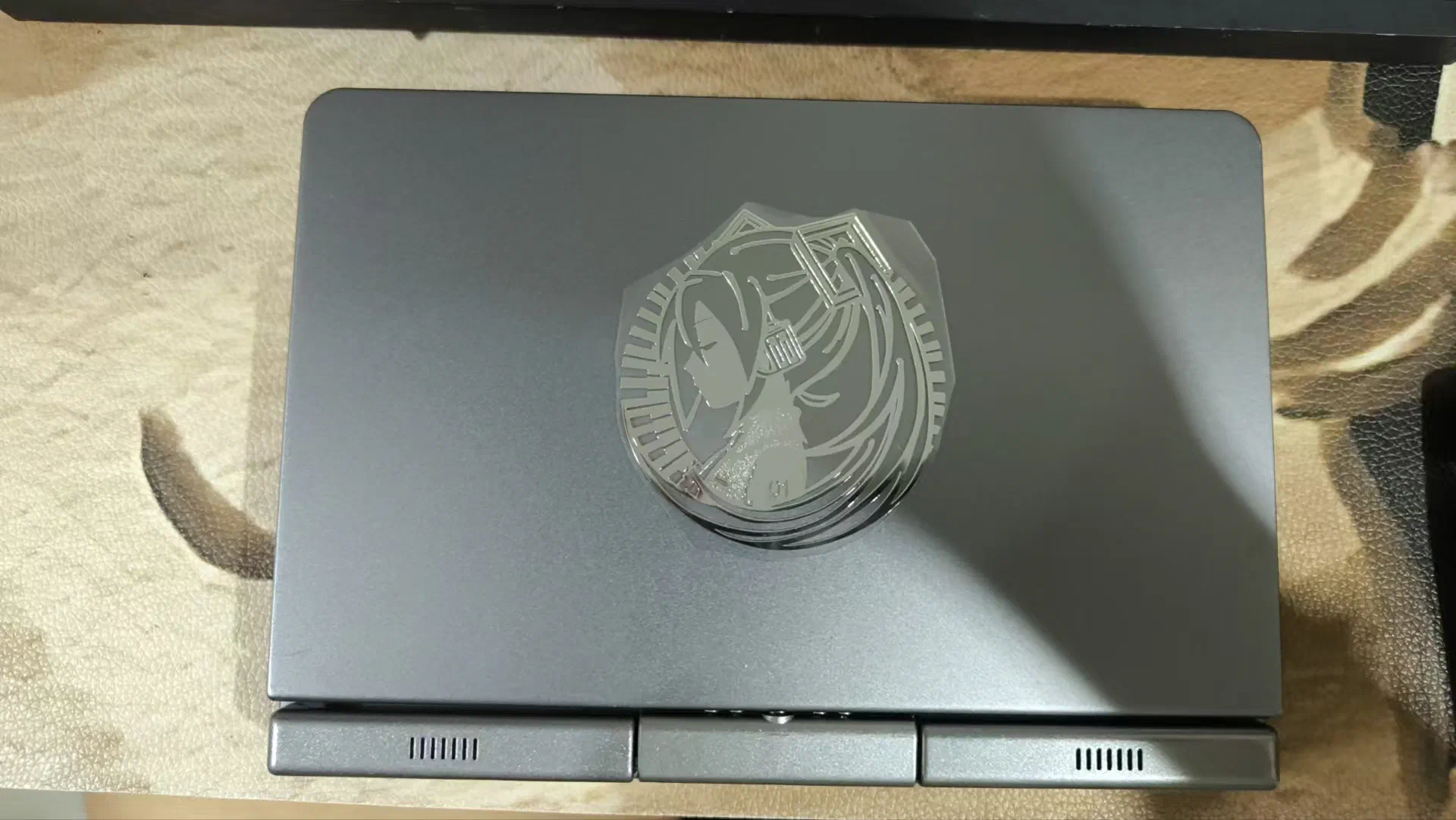
I also added a very nice metal sheet Miku sticker on the back lid for decoration; as a nice touch the back lid is completely unbranded, just the raw anodized aluminium.
Usage
Conveniently, this laptop charges off any 60W+ USB-C PD charger. Furthermore, even at this size, it still provides a very useful selection of ports:
- USB-C 3.0 + PD charging (Right)
- Full size HDMI output (Right)
- 3.5mm combo HP + MIC jack (Right)
- USB-A 3.0 (Right)
- MEMS integrated microphone (Right)
- RJ45 Gigabit ethernet (Back)
Not only is this more than some modern MacBooks provide, but it includes a full-size Gigabit ethernet port! Very exciting for a convenient device to work on home servers and other networked gear. Combined with the N100 Intel CPU, BT+WiFi and 12GB RAM; it provides a relatively powerful thin client. The screen is touch and stylus capable, and that opens up some interesting use cases when in tablet mode. The screen works with my Lenovo tablet stylus, and does support pressure levels.
It came with Windows 11 installed by default, which I immediately debloated using CTT’s Win Debloat Tool. After installing some Windows software, I tested it on-the-go during my trip to Tokyo, Japan; where I used it at the airport and my hotel to edit the DSLR photos I had taken on the trip using Adobe Lightroom.
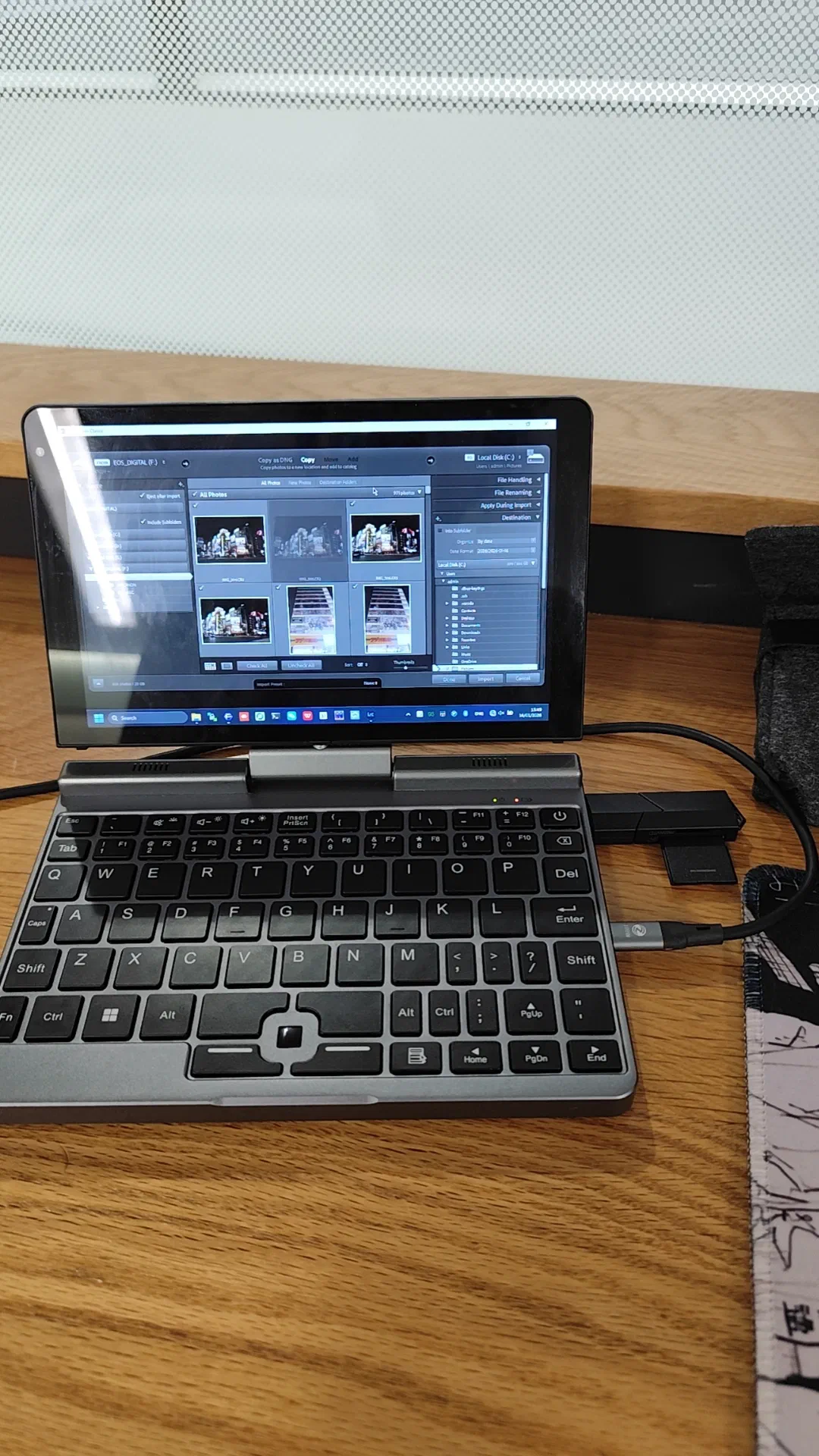
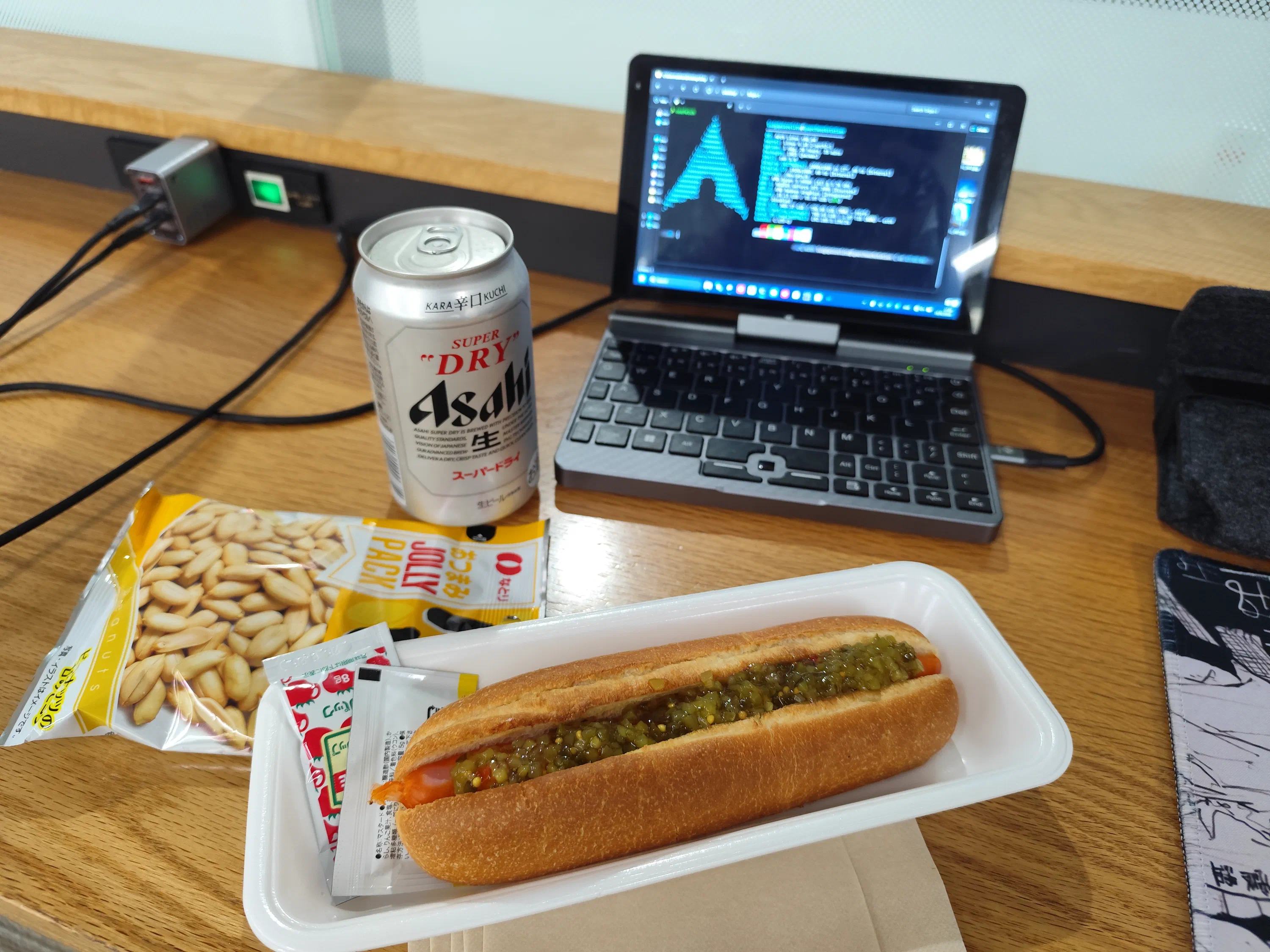
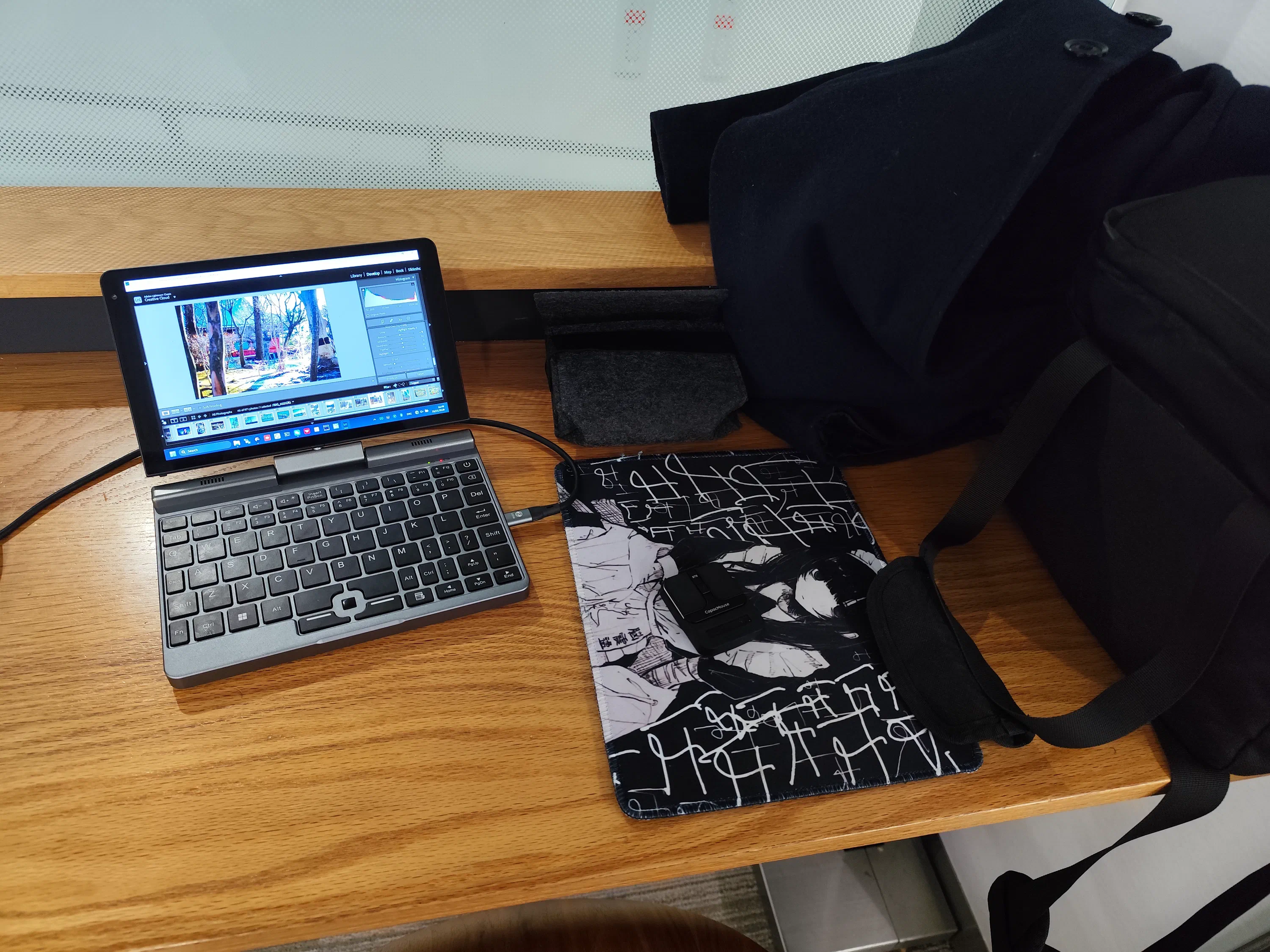
The “track nipple” style trackpad, probably inspired by ThinkPads, is actually surprisingly usable. Instead of the hard to control pressure-based sensor used on ThinkPads, this track-point is actually optical, and uses an ordinary mouse sensor. It supports tap to click and the two mouse keys are conveniently placed. Though of note, is that you need to use the touch screen or the arrow keys to scroll, as it is impossible to scroll from the track-point (except for dragging a scrollbar).
The keyboard definitely is smaller than usual, but after a few weeks getting used to it, its not bad at all. All the keys have a satisfying pressure and tactile feeling as they are pushed down. Very similar feeling to an OG Intel MacBook keyboard. My only minor gripe is that the big backspace key is replaced with a Delete key, with the backspace being a small key above it. This is very annoying and I used a simple AutoHotKey script in Windows to remap and swap those.
The screen is surprisingly crisp at this size and a resolution of 1280x800px (16:10 aspect ratio for the win!). And the flimsy-looking hinge is actually quite solid, the entire build quality of this mini laptop is pretty insane; the entire device, except for the speaker covers, is made entirely of machined aluminium. Completely unexpected at this price point. This gives it a very good weight and a surprisingly premium feel. The speakers themselves don’t sound particularly great and are quite tinny, but that is to be expected at this size.
It does run a little bit hot under most workloads, but that’s to be expected with an N100 quad-core CPU at this size. Despite the fan often running at full blast, it remains practically completely silent.
Installing Linux
One of the big challenges I came across was getting Linux to work on this mini laptop. The first issue is that the integrated DSI display panel has a default orientation that is rotated to portrait mode. After not much digging, I found a fix on the
Linux Mint Forums, which was to pass a fbcon=rotate:1 video=DSI-1:panel_orientation=right_side_up parameter to the Linux kernel in the GRUB bootloader config.
The next issue was quite a bit more tricky. For whatever reason, there is a bug in the Intel iGPU i915 driver that has not been patched upstream, which causes the display to fail to initialise on boot. It is however fixed and initialises properly after a sleep cycle. I only managed to automate this solution after finding a
GitHub Gist by sam1am, which creates a SystemD service unit to briefly sleep for a few seconds on boot. TLDR; you need to add and enable this SystemD service:
 1[Unit]
 2Description=Suspend system briefly after boot
 3DefaultDependencies=no
 4Before=basic.target
 5After=local-fs.target
 6
 7[Service]
 8Type=oneshot
 9ExecStart=/usr/bin/rtcwake -u -s 3 -m mem
10RemainAfterExit=yes
11
12[Install]
13WantedBy=basic.target
With those two issues resolved, I was able to try out CatchyOS with GNOME desktop and get it working well. I didn’t go for end_4 dots + Hyprland like on my main workstation as I wanted something easier to setup and a bit more resilient and power optimised by default for laptop use.
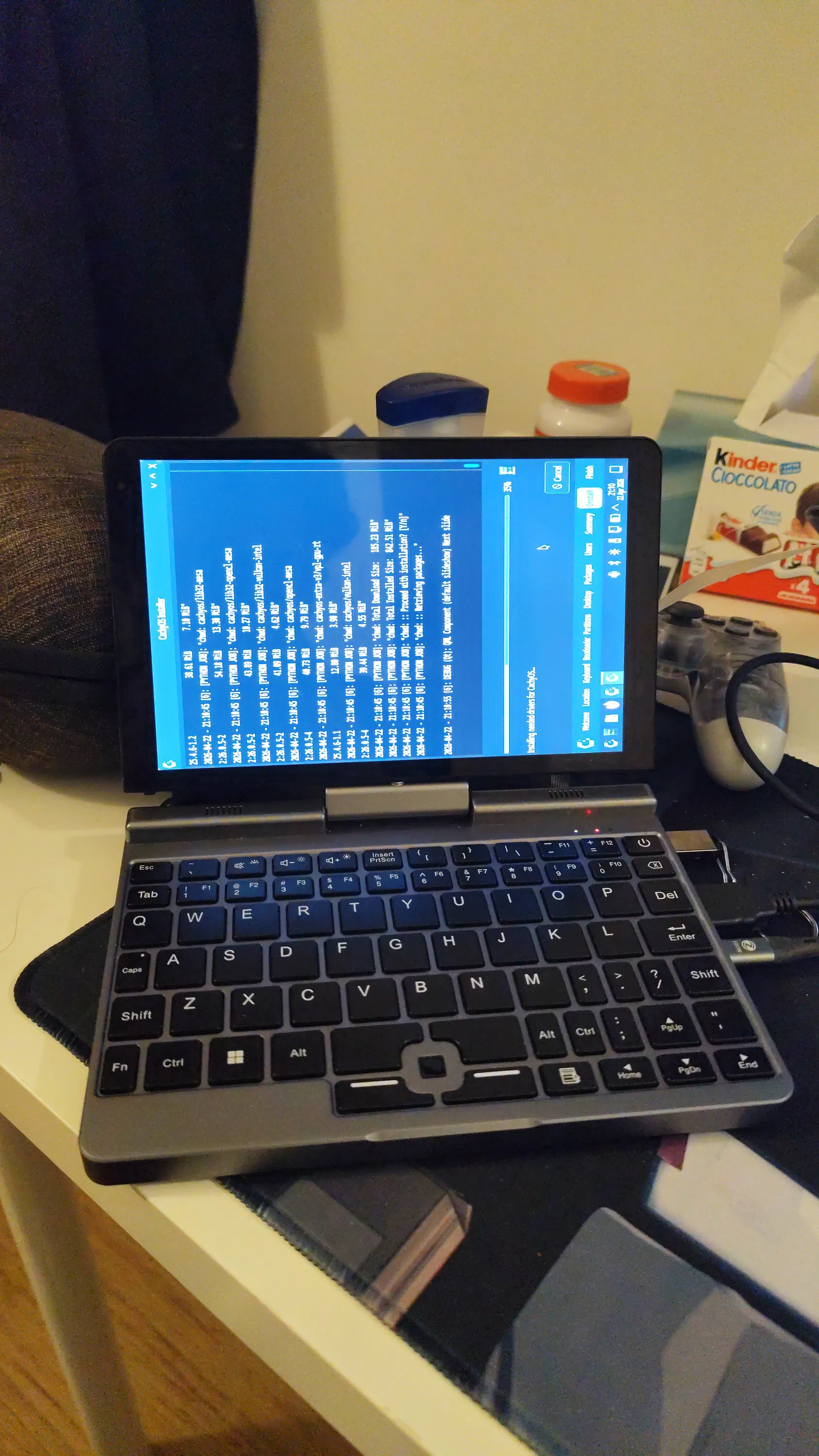
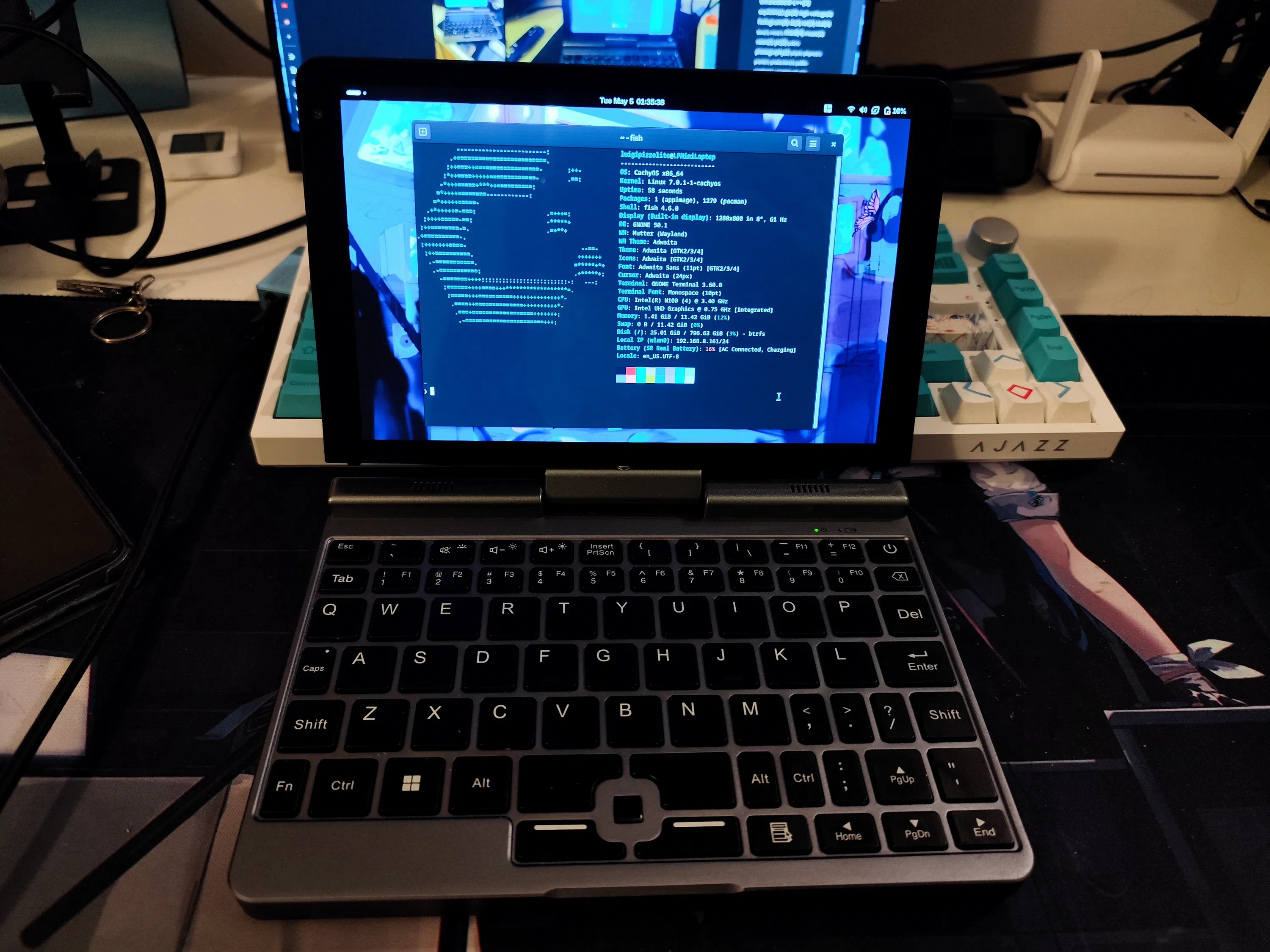
Overall, this is a great little laptop and it’s will be my daily driver laptop from now on as I continue to study for my Master’s. Having a capable but at the same time such tiny and cute device is very nice, despite it’s minor usage inconveniences.